
Workflows
A workflow is a plan of agent steps and event waits that an agent hands to SAM. Each step says what it needs before it can start. An agent step names a profile and becomes an ordinary chat; a wait step listens for a matching project event without starting a chat or VM. SAM advances the plan while the agent that submitted it sleeps.
Use a workflow for work that splits into parts that depend on each other, such as “draft the release notes, have two agents review them at the same time, then apply both reviews”.
Start a workflow
Section titled “Start a workflow”Ask an agent in any chat, for example: “Plan this as a workflow: draft the release notes, have them reviewed, then apply the review.” The agent writes the plan and chooses a VM profile for each agent step; Instant profiles are not supported yet. It can also add an event wait with an exact source, event type, optional subject, and finite timeout. For example, an agent can wait for a GitHub check to finish before starting the next step. A wait starts listening once its earlier steps finish. Earlier events do not count.
There is no button to create or edit a workflow, and no templates. A workflow cannot be paused, cancelled or retried as a whole. Each step’s chat keeps the usual task controls.
By default a workflow can have up to 25 steps, runs at most 2 agent steps at once, and must finish within 72 hours. A project can have up to 10 workflows running at once. A superadmin can change these limits in Admin → Settings; see Dynamic admin settings.
Where to find workflows
Section titled “Where to find workflows”Automation in the project navigation shows workflows in two places:
- Workflows lists the newest runs, with All to open the full list. On a wide screen it sits in the right-hand column.
- Needs your attention shows a workflow that needs attention for three days after it last changed, with the failed step’s reason and See what went wrong, which opens that step.
The Workflows page lists every run in the project. All, Running, Needs attention and Done narrow the list. Under All, runs that need attention come first, then running ones, then finished ones. Each row says what is happening now, such as “Working on “Review tone and wording” · 2 of 5 done”, and shows a bar with one segment per step. Show older workflows loads more.
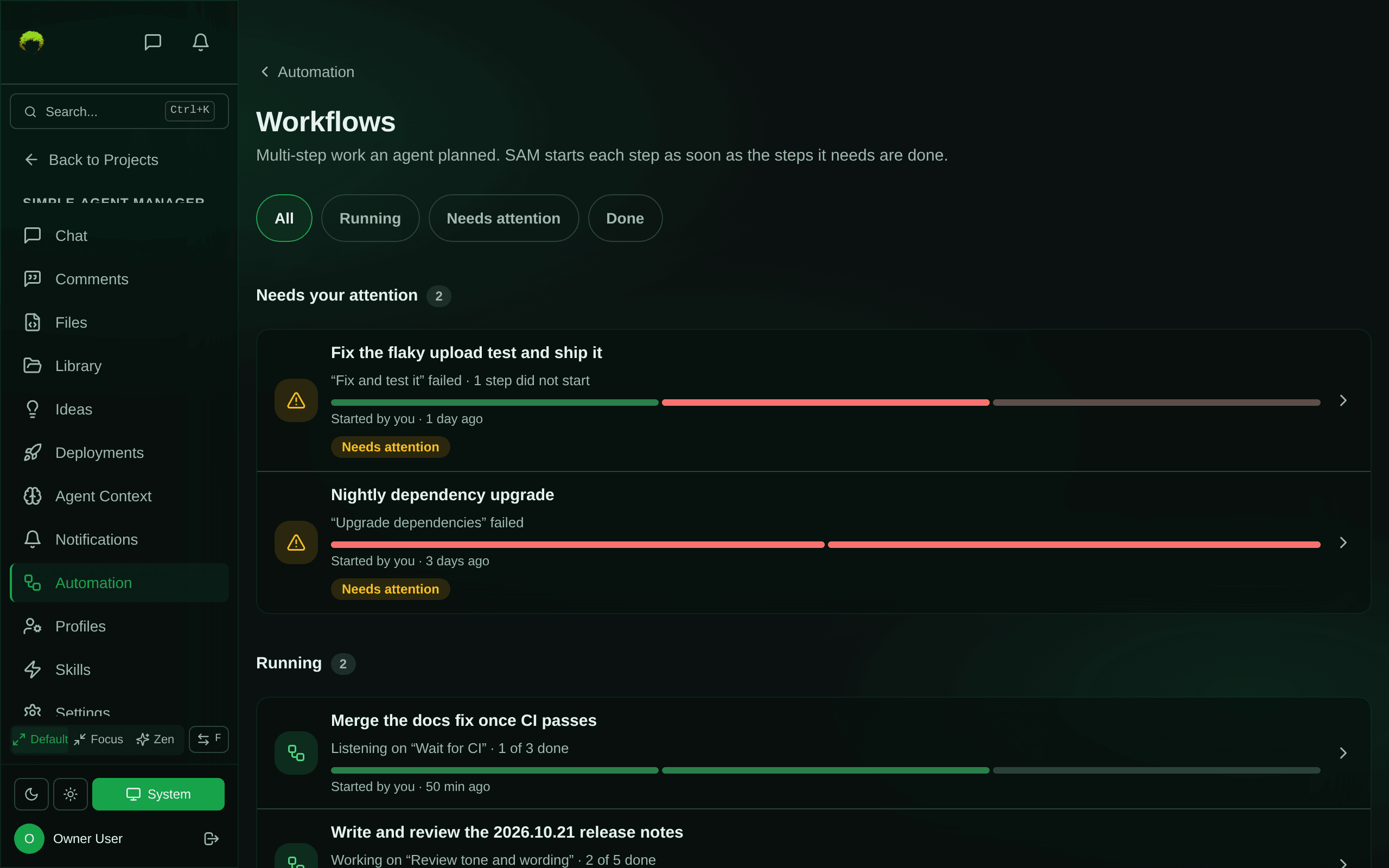
Everyone in the project can see every run, including members with view-only access.
Follow a run
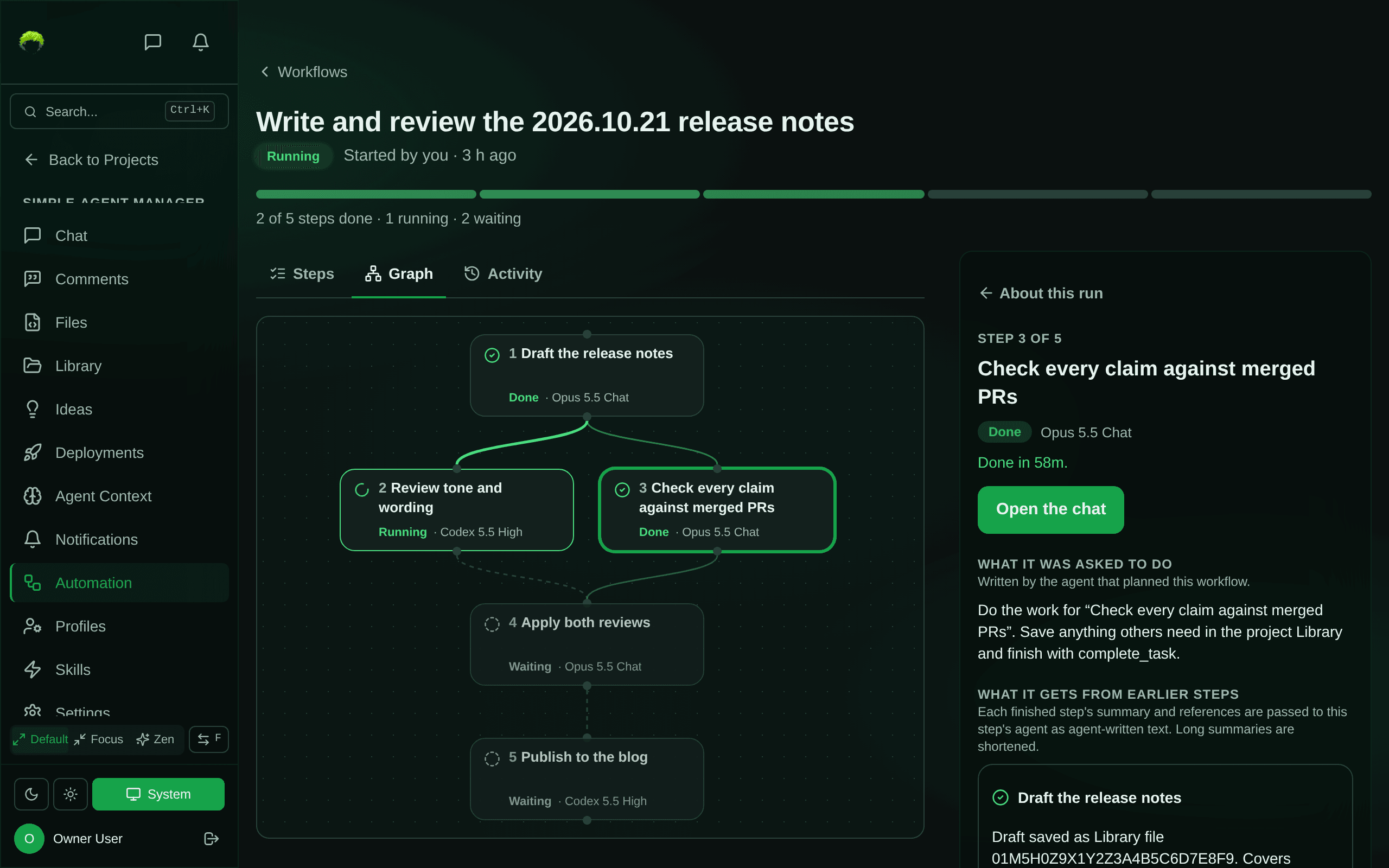
Section titled “Follow a run”Open a run to see its progress: a bar with one segment per step and a sentence such as “2 of 5 steps done · 1 running · 2 waiting”. Three views show the same steps:
- Steps groups the steps in the order they can run: First, Then, Finally, with “at the same time” when several can run together. Each card says what the step is doing in words, for example “Starts after “Draft” finishes.” or “The agent is working on it.”
- Graph draws each step as a box with arrows to the steps that need it. A wide plan scrolls sideways and opens centred on the step you selected.
- Activity lists what happened, such as ““Draft” finished” or ““Ship” did not start”.
On a wide screen the run opens on Graph, with About this run beside it: the goal, the chat that started the run, a link to each step’s chat, and a short note on how workflows run. On a phone it opens on Steps, with About this run below. Advanced shows the run ID.
A running workflow refreshes every 10 seconds while the tab is in front. A finished one does not change, so it is not refreshed.
What each step shows
Section titled “What each step shows”Select a step in any view to see its details:
- Its status, the agent profile that runs it, and what is happening now. A step that is ready can wait a moment for a free slot: “Ready. SAM starts it shortly; at most 2 steps run at once.”
- Open the chat once SAM has started an agent step. Wait steps have no chat.
- What it was asked to do: the instructions the planning agent wrote.
- What it gets from earlier steps: the summary and references from each step it needs. These are passed to the step’s agent as agent-written text, and long summaries are shortened.
- What it produced: the summary the agent finished with, its branch and pull request, links to Library files it referenced, and any test or check results it reported. These are reported by the step’s agent, not checked by SAM.
- Advanced: the step key and the IDs of its task, chat and attempt.
Steps do not share files. A step hands work to the next one through the project Library, a branch, or its summary.
When a step fails
Section titled “When a step fails”An agent step finishes when its agent completes its task with a summary. A wait step finishes when its matching event arrives and fails if its timeout passes first. Agent steps can fail when their task fails or is stopped, when the agent finishes without a summary, or when SAM cannot start it. Steps that need a failed step do not start; steps that do not need it keep going. When nothing is left to run, the workflow shows Needs attention. A workflow that reaches its time limit stops the same way, and its unfinished steps fail. An agent can still be working in one of those steps’ chats, so check them before starting a new run.
The run then opens with what went wrong: the failed step, the reason in SAM’s own words, and how many steps did not start because of it. See the failed step opens its details, Open its chat shows what the agent did, and Open the chat that started it goes back to the planning agent.
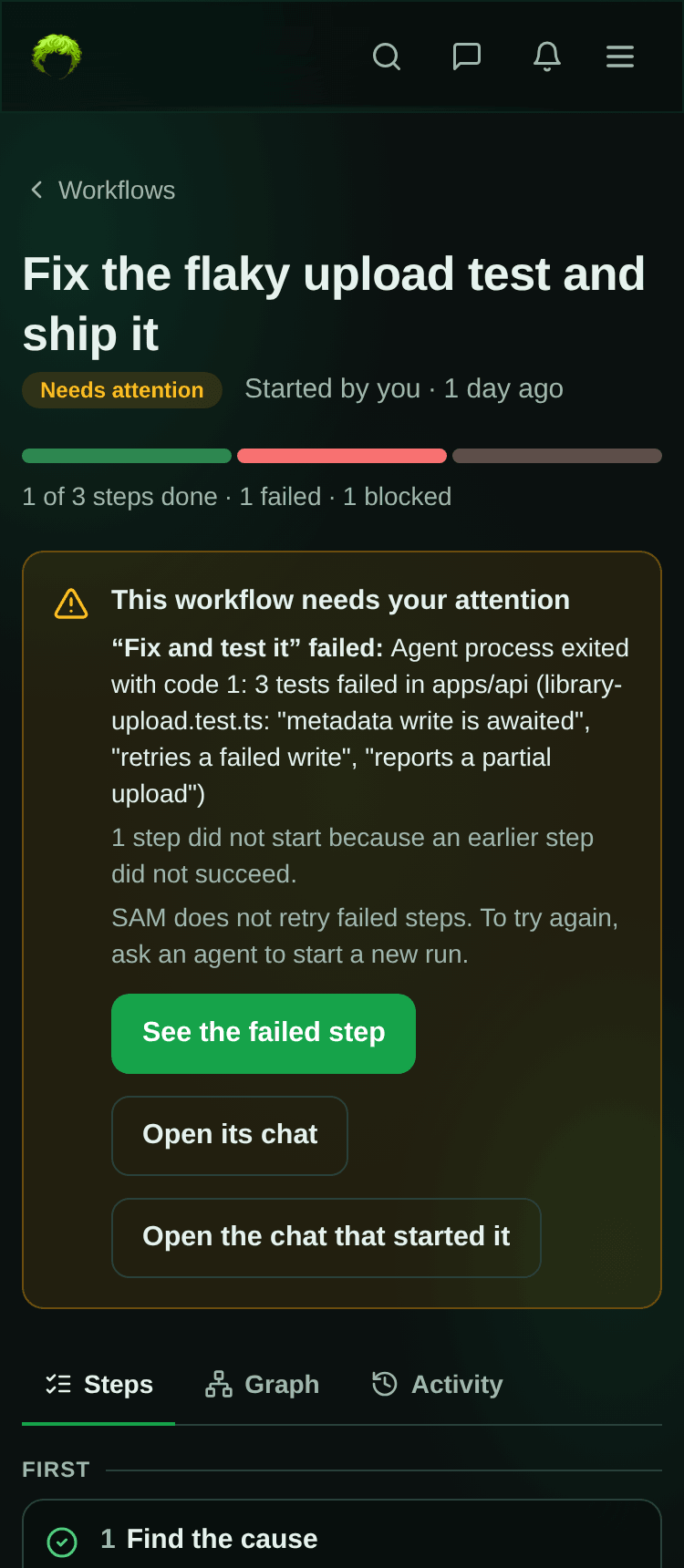
SAM does not retry a failed step. To try again, ask an agent to start a new run, for example in the chat that started the first one.