
AI Agents
SAM supports six AI coding agents. You connect the ones you want to use, then choose which to run for a given chat by selecting an agent profile.
Supported Agents
Section titled “Supported Agents”Claude Code
Section titled “Claude Code”| Property | Value |
|---|---|
| Provider | Anthropic |
| API Key | ANTHROPIC_API_KEY |
| OAuth Support | Yes (Claude Max/Pro subscriptions) |
| Get a Key | Anthropic Console |
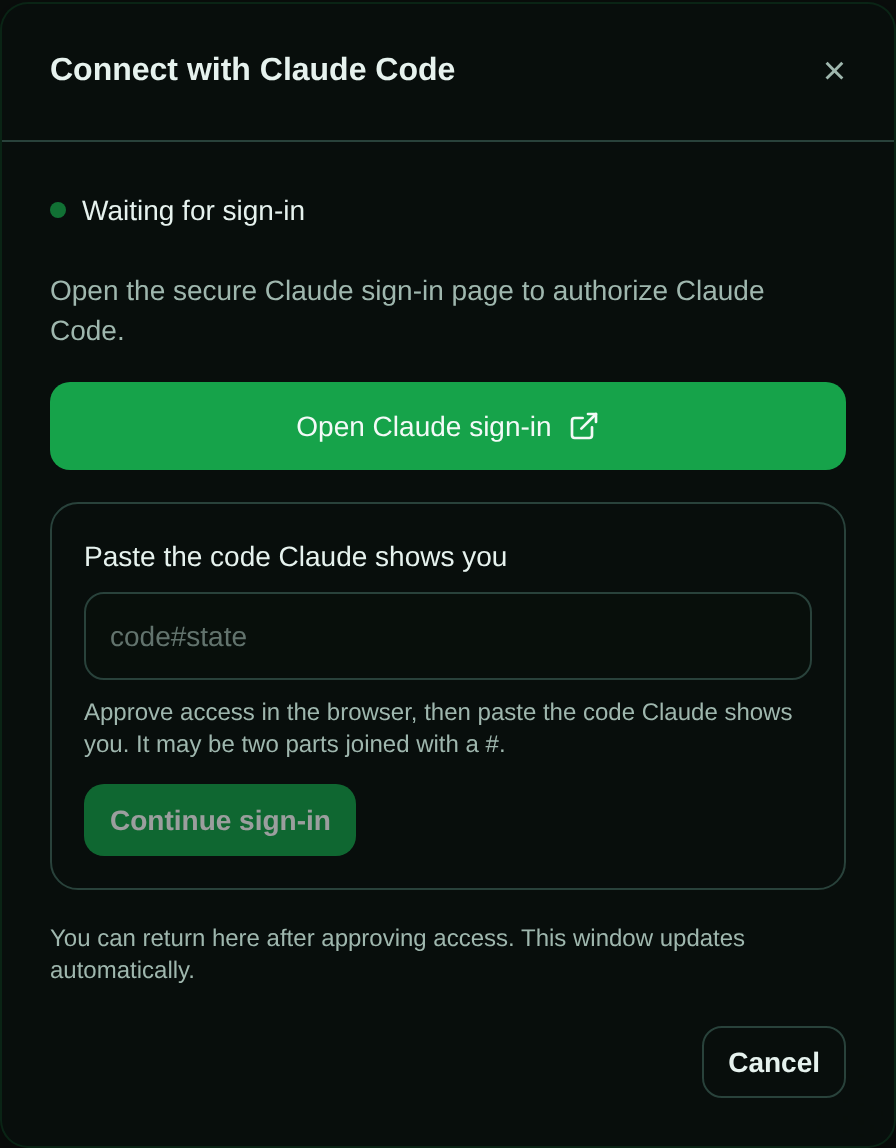
Claude Code supports two authentication methods: an API key (pay-per-use) or your Claude Max/Pro subscription. To use a subscription, choose Connect with Claude Code for the guided sign-in — SAM opens a Claude sign-in page, then you paste Claude’s browser-displayed code#state value back into SAM, so you never run claude setup-token or paste a token by hand. Pasting a claude setup-token value manually is still available as a fallback.
OpenAI Codex
Section titled “OpenAI Codex”| Property | Value |
|---|---|
| Provider | OpenAI |
| API Key | OPENAI_API_KEY |
| OAuth Support | Yes (via ~/.codex/auth.json) |
| Get a Key | OpenAI Platform |
For a ChatGPT subscription, choose Connect with Codex for the guided
sign-in. SAM opens an OpenAI
sign-in page and shows a copyable one-time code; no terminal interaction or
manual ~/.codex/auth.json paste is required. Pasting auth.json manually is
still available as a fallback.
Gemini CLI
Section titled “Gemini CLI”| Property | Value |
|---|---|
| Provider | |
| API Key | GEMINI_API_KEY |
| Get a Key | Google AI Studio |
Mistral Vibe
Section titled “Mistral Vibe”| Property | Value |
|---|---|
| Provider | Mistral |
| API Key | MISTRAL_API_KEY |
| Get a Key | Mistral Console |
Mistral Vibe is installed via uv (Python package manager) and requires Python 3.12.
OpenCode
Section titled “OpenCode”| Property | Value |
|---|---|
| Provider | OpenCode (SST) |
| Default Inference Provider | OpenCode Zen |
| Advanced Inference Providers | OpenCode Go, SAM Platform (Workers AI), Scaleway, Google Vertex, OpenAI-compatible, Anthropic, custom |
| API Key | OPENCODE_API_KEY for OpenCode Zen and OpenCode Go |
| Get a Key | OpenCode auth |
OpenCode defaults to OpenCode Zen. SAM loads the Zen and Go model dropdowns from Models.dev through its authenticated model-catalog API, with a static fallback if that upstream catalog is unavailable. Select OpenCode Go in agent settings to use Go-only models such as opencode-go/glm-5.2. Advanced configurations can use SAM Platform inference without a user API key, or another user-selected inference provider. If you explicitly select Scaleway and already have a Scaleway cloud provider credential configured, OpenCode can reuse that credential — no separate API key required.
| Property | Value |
|---|---|
| Provider | Sourcegraph |
| API Key | AMP_API_KEY |
| OAuth Support | No |
| Get a Key | Amp settings |
Amp requires an Amp API key and may require paid Amp credits.
Connecting Agent Credentials
Section titled “Connecting Agent Credentials”- Go to Settings → Connections in the SAM web UI
- Start the Connect flow for the agent you want to use
- Provide your API key (or OAuth token). Your credentials are encrypted at rest.
You can connect multiple agents and switch between them per chat by choosing a different profile.
Connecting a subscription with guided sign-in
Section titled “Connecting a subscription with guided sign-in”If you pay for Claude Max/Pro or a ChatGPT plan, you can connect that subscription instead of an API key — without leaving the browser or touching a terminal. This is the recommended way to use Claude Code or OpenAI Codex on a subscription.
- Go to Settings → Connections (or Settings → Agents) and start the connect flow for Claude Code or OpenAI Codex.
- Choose the OAuth / subscription authentication method (rather than API key), then click Connect with Claude Code or Connect with Codex.
- Click the Open sign-in link and approve access on the provider’s page. For Codex, enter the short code SAM displays when the provider asks. For Claude Code, copy the
code#statevalue Claude displays, return to SAM, paste the complete value into the dialog, and click Continue sign-in. - Leave the SAM window open — it updates on its own. When the provider confirms, the panel shows Connected and your subscription credential is saved, encrypted at rest.
A few things worth knowing:
- No terminal, no file paste. The old flow asked you to run
claude setup-tokenor paste~/.codex/auth.json. Those still work as a manual fallback (in the same panel), but the guided flow removes them from the happy path. - User-scoped. Guided sign-in saves the credential for your account, so it applies across your projects. To set a subscription credential for a single shared project, use the manual paste fallback in that project’s connections.
- Availability. Guided sign-in is available on the hosted platform and on self-hosted deployments running on Cloudflare Containers (SAM’s default runtime). If the button isn’t shown, use the manual API key or token fields in the same panel.
Usage Limits
Section titled “Usage Limits”A subscription only lets you use so much in a stretch of time — Claude Max has a five-hour and a weekly limit, for example. SAM shows how much of each limit your agents have used, so you can see one coming before an agent stops on it.

- In a chat, a small chip under the chat’s title shows the credential that chat’s agent uses —
for example
Claude · 5h 78% · Week 31%, shortest limit first. Select it to see every limit, how much of it is used, and when it resets. It appears once SAM has a reading, usually after the agent’s first reply; credentials that report nothing (see the list below) never show one. - In Settings → Advanced, each of your personal credentials in the Credentials list shows the same chip once an agent has used it.
- Agents can read the same numbers with the
get_credential_limitstool, so an agent coordinating others can pause before a limit and schedule itself to wake after the reset.
The Usage tab in Settings is different: it shows SAM’s own AI-proxy and compute usage, not your provider’s limits.
The chip’s colour shows the most serious state among the limits, and the dialog names it: OK, Warning (from 75%, or earlier if the provider warns), Critical (from 90%), or Limit reached (the provider is refusing requests). For your own subscription the percentages cover your whole account with that provider, so they include use outside SAM; a Platform credential’s numbers are SAM’s shared limits.
When a limit is nearly used up, wait for the reset time shown in the dialog, or start new work with a profile for a different agent — Codex instead of Claude Code, say. If a limit runs out in the middle of work, a Task fails but SAM keeps its workspace (see When a task fails), and a Chat just stops with the provider’s error. Either way, reply in the same chat after the reset to carry on. By then the chat has usually gone to sleep, so it wakes without some of its settings.
The numbers are the last reading SAM took while an agent was using that credential, not live figures from the provider. A credential nobody has used for a while keeps its last reading for up to 30 days, and the dialog says how old it is.
Which credentials report limits:
- Claude Code with a Claude Pro/Max subscription: the five-hour and weekly limits, plus the weekly Opus or Sonnet limit when that one is closest to running out. Claude Code sends its first reading only after a few model calls, so a chat that ends after one short reply may not show a chip yet.
- Codex with a ChatGPT plan: the plan’s limits — often five-hour and weekly, sometimes weekly only.
- OpenCode with an OpenCode Go key: rolling, weekly, and monthly.
- Claude Code or Codex in the SAM provider mode: the request and token rate limits the model provider reports, shown as Platform credential.
OpenCode Zen bills from a credit balance that only the OpenCode console shows, so Zen has no chip; OpenCode’s agent settings link to the console instead. API keys used directly, and the other agents, report no limits. SAM reads these numbers from what the agents and providers report while they work, plus OpenCode’s Go usage endpoint; it doesn’t call Anthropic’s or OpenAI’s undocumented account-usage pages.
AI Provider Modes
Section titled “AI Provider Modes”Each agent runs in one of three provider modes, which control where LLM traffic goes and who pays for it:
| Mode | What it uses |
|---|---|
| API key | Your own provider API key (ANTHROPIC_API_KEY, OPENAI_API_KEY, etc.) |
| OAuth | A token from your provider subscription (for example Claude Max/Pro) |
| SAM | The platform’s managed AI proxy, with billing and budget handled by SAM (opt-in) |
You pick the mode when you connect an agent. The SAM platform proxy is never selected automatically — you have to opt in.
In SAM mode the proxy serves the models in the platform catalog, which an operator can narrow, and an administrator can limit your account to certain model tiers (low-cost, standard, premium). A model outside either is refused with an error naming the model and what you can use; your own API keys and subscriptions are not affected.
Agent Profiles
Section titled “Agent Profiles”An agent profile bundles a connected agent, a model, and settings into a reusable configuration. Profiles are how you choose what runs: pick a profile from the chat input when you start a session, or attach one to a trigger for automated work. Create and manage profiles under a project’s Profiles page.
In a shared project, agent profiles (and skills, environment variables, secrets, and files) are project-scoped resources — any member can use profiles another member created. LLM cost still follows the running user’s own key unless a shared project credential is attached.
When work starts, the agent is resolved in this order:
- The profile you selected (or the trigger’s profile)
- The project’s default profile
- The platform default (
DEFAULT_TASK_AGENT_TYPE,opencodein the checked-in Worker config)
Choosing a model
Section titled “Choosing a model”The profile’s model picker lists the models SAM knows each agent supports. The list is bundled with SAM and updated with its releases, OpenCode’s included. (In Settings → Agents, OpenCode’s model dropdown loads live from Models.dev when its provider is OpenCode Zen or OpenCode Go.) If a model you want isn’t listed yet, type its exact ID and press Enter to use it as a custom model. SAM does not check a custom ID against any list, so it has to be a model your provider accepts and your agent’s version can run. The exception is the SAM provider mode: the platform proxy only serves models in its catalog, so there an unlisted ID is refused.
Permission mode
Section titled “Permission mode”Agents start in Bypass Permissions mode, so they edit files and run commands without stopping to ask. Each workspace is its own isolated VM or container. To make an agent more careful, choose another mode:
| Mode | What the agent does |
|---|---|
| Bypass Permissions (default) | Works without asking |
| Accept Edits | Changes files without asking, but asks before running commands |
| Manual | Asks before it changes files or runs commands |
| Plan Mode | Reads and plans without changing anything, then asks you to approve a plan |
| Don’t Ask | Never asks; anything that would need your approval is refused |
Set a mode in a profile, in the project’s Agent Overrides (project settings), or in
Settings → Agents. When a chat starts, SAM uses the first of these that sets a mode, in that
order; a change applies to chats started after you save it, not to one already running. (A skill
created with SAM’s create_skill tool can set a mode too, and it wins over the profile’s.)
When the agent asks, a card appears in the chat and the agent waits for your answer — see When the Agent Needs You. A request nobody answers expires and counts as a no. On a self-hosted instance where the operator hasn’t turned agent requests on, no card appears and every request counts as a no: an agent in Manual or Plan Mode can’t get approval to change anything, and one in Accept Edits can edit files but not run commands that need approval.
Claude Code supports every mode. Even in Bypass Permissions it still asks about a few safety checks, and those questions appear in the chat. Codex always runs with full access. Other agents keep their own behavior when they don’t support the chosen mode — Amp and Gemini CLI, for example, still ask before some actions even when SAM sets Bypass Permissions.
After a chat wakes from sleep
Section titled “After a chat wakes from sleep”Sessions started on the current version keep their resolved permission mode, model, reasoning effort, and provider settings when they wake on either VM or Instant. Later changes to a profile, Agent Overrides, or Settings → Agents apply to new sessions. Agent requests still appear as cards after wake when your operator has enabled them.
A Task keeps its task completion and commit, push, and pull request behavior after waking; a Chat remains a Chat. On a VM, if SAM starts fresh from a degraded snapshot, it keeps these settings and reads the saved transcript before continuing. It still tells you which files could not be restored.
Older saved sessions may not have their original settings recorded. SAM resumes those with Manual permissions rather than silently granting Bypass Permissions. To choose a different mode or model, start a new chat or fork with the desired profile selected. Agent-specific limits still apply, including Codex’s full-access permission behavior.
An agent asks when you don’t expect it
Section titled “An agent asks when you don’t expect it”A mode saved earlier still applies, so check all three places. Older built-in profiles were set to
Accept Edits or Plan Mode, and saving Settings → Agents on or before 4 October (on a
self-hosted instance, before it ran v2026.10.05) stored the old default, now shown as Manual,
even if you only changed the model. To stop the questions, set Bypass Permissions where the mode
is set, or clear it there so the next place decides: No override in a profile, Inherit from
user settings in Agent Overrides. If Claude Code still asks, it may be running as root.
Claude Code asks even in Bypass Permissions
Section titled “Claude Code asks even in Bypass Permissions”Claude Code won’t use Bypass Permissions when it runs as root, so it asks as in Manual instead.
On a VM the agent runs as your devcontainer’s user, so this happens when the project’s devcontainer
runs as root. Repositories without a .devcontainer, the Lightweight workspace profile, and
Instant sessions use SAM’s own images, which run as a non-root
user — though Lightweight still follows a devcontainer.json that sets remoteUser or
containerUser to root.
To check, ask the agent to run whoami, or run it yourself in the workspace’s
terminal. If it prints root, set "remoteUser" in
.devcontainer/devcontainer.json to a non-root user that exists in your image — vscode in most
Dev Container images, node in the Node.js ones; if your
image has none, create one in its Dockerfile. Then push the change to your default branch and start
a new chat.
Claude Code also refuses Bypass Permissions when the repository’s .claude/settings.json or
.claude/settings.local.json sets permissions.disableBypassPermissionsMode to "disable". Remove
that setting if you want Bypass Permissions.
Workspace Profiles
Section titled “Workspace Profiles”An agent profile’s Workspace Profile setting chooses how much environment its chats get:
- Full (default) — builds your project’s
.devcontainerso the agent can run your stack, tests, and services. Best when the work depends on your real environment. - Lightweight — starts faster with a minimal environment. Best for quick questions, planning, and code exploration. With Task Mode left at Default, a Lightweight profile’s sessions are Chats, so SAM doesn’t commit, push, or open a pull request — see Chat or Task.
Agent Session Features
Section titled “Agent Session Features”Real-Time Streaming
Section titled “Real-Time Streaming”Agent output streams to your browser in real-time via WebSocket. You see code being written, commands being executed, and decisions being made as they happen.
Conversation Forking
Section titled “Conversation Forking”Fork in the session tool rail starts a new session that carries an AI-written summary of the current one, so you can try an alternative without losing the original thread. A fork covers the whole session, not a single message. See Conversation Forking for the steps and limits.
Voice Input
Section titled “Voice Input”Speak your message or follow-up prompts using the microphone button. SAM transcribes audio using Whisper (via Workers AI) and submits the text.
Text-to-Speech Playback
Section titled “Text-to-Speech Playback”Agent responses can be played back as audio using Deepgram Aura 2 (via Workers AI). TTS audio is cached in R2 for subsequent playback.
Session Lifecycle
Section titled “Session Lifecycle”SAM tracks related lifecycle state at three levels:
- Chat session:
active,sleeping,stopped, orerrorin the public API. A sleeping conversation keeps the composer visible so a same-chat follow-up can wake and resume it. - Task record:
draft,ready,queued,delegated,in_progress,sleeping,completed,failed, orcancelled. A sleeping VM conversation retains the same task when it wakes. Task-mode work keeps its task completion lifecycle instead of showing the manual Sleep action while idle. - Runtime agent session:
running,recovery,sleeping,suspended,stopped, orerror. Recovery means SAM is rebuilding runtime compute and restoring the saved harness/session state.
If a VM wake attempt fails while its saved workspace is still recoverable, the conversation returns to sleeping and keeps the same task. Its parent is not told that the conversation failed. You can try again; repeated wake failures may require a short cooldown. A wake without a usable saved workspace still ends with a visible failure.
Sleeping VM tasks remain visible in Active Tasks, the account map, and agent lists. Agents in the same project can send a follow-up using send_message_to_subtask or send_durable_message; durable delivery wakes the saved conversation. If durable delivery is disabled, the tools explain that sleeping targets require it. A direct parent can cancel a sleeping child with stop_subtask without waking its VM.
Conversation-mode sessions with an attached workspace can be manually slept when awake and idle. Archive remains destructive and appears after the reversible sleep boundary.
SAM now backs chat sessions with task records across more runtime paths. In practice, that means forking, archive/complete controls, lineage, and status reporting behave consistently whether the work started as an idea execution, a full task, or an instant chat.
MCP Tools
Section titled “MCP Tools”Running agents have access to project-aware MCP tools:
| Tool | Description |
|---|---|
dispatch_task | Spawn follow-up work using the selected profile runtime, or an explicit runtime override; an optional coordinationChannel is inherited by every descendant |
create_idea | Create a new idea |
update_idea | Update an idea’s title, content, priority, or status |
list_ideas | View project ideas |
get_idea | Read idea details |
search_ideas | Search ideas by keyword. Long multi-word input searches every retained term; input beyond the configured guardrails is truncated and disclosed in the response. |
link_idea | Link an idea to a chat session |
unlink_idea | Remove an idea-session link |
find_related_ideas | Find ideas related to a session |
list_linked_ideas | List ideas linked to a session |
list_sessions | View chat sessions |
get_session_messages | Read conversation history (consecutive streaming tokens are concatenated into logical messages) |
search_messages | Search current and archived messages by keyword. Long multi-word input searches every retained term; input beyond the configured guardrails is truncated and disclosed through queryTruncated, query, and queryLimits. Sessions are indexed incrementally as they sleep or stop. Project-wide results may be provisional: repeat the same input query, roles, and limit with archiveSearch.continuation until archiveSearch.complete is true; owner, index, execution, and rootSearch coverage are reported separately. |
get_resource_history | Read a VM-backed workspace’s retained CPU, memory, I/O and OOM history; defaults to the caller’s own session |
list_triggers | List this project’s automation triggers, optionally filtered by status or source type |
create_project_event_subscription | Subscribe the current task agent to durable project events using bounded v1 exact/set filters for source, event type, subject, and severity |
list_project_event_subscriptions | Recover active event subscription IDs owned by the current task agent |
get_project_event_subscription | Inspect one owned event subscription, including filter and recorded delivery preference |
cancel_project_event_subscription | Idempotently cancel one owned event subscription |
list_subscription_events | Replay missed or queued events for one visible subscription; returns payload-free summaries, delivery IDs, and an opaque subscription-bound cursor |
get_event | Fetch full stored details for one event that is visible through an active subscription |
ack_event_delivery | Idempotently acknowledge a processed pull delivery by delivery ID |
list_incident_queue | List grouped private feedback incidents; available only inside the configured feedback project |
get_incident | Read one bounded, redacted private incident and its untrusted evidence |
claim_incident | Atomically claim a private incident for the current task |
resolve_incident | Terminally resolve or reject a claimed private incident; resolved outcomes require a PR/task/Idea ship-or-track reference |
update_task_status | Report progress |
get_task_details | Inspect task state, persisted output fields, PR/error details, session id, and bounded recent assistant diagnostics |
complete_task | Mark current work as done. Pass the pull request URL as evidence.prUrl; it is saved on the task alongside optional test, staging, CI, manual verification, and note evidence. |
request_human_input | Record a user decision request and notify the user; the tool call itself is non-blocking |
get_task_details keeps outputPrUrl, outputSummary, and completionEvidence as the canonical persisted completion fields. When a task has a linked chat session, it can also include a bounded recentAssistantMessages array with up to five recent assistant messages, each capped to 2,000 characters, so orchestrators can recover useful final output when the persisted summary is sparse. The SAM session (Anthropic tool) variant returns a single finalAssistantMessage (the latest assistant message, content capped to 2,000 characters) instead of the full array. If session diagnostics are unavailable, task details still return and the diagnostic fields are empty/null.
For durable project eventing, use this loop: create the narrowest useful subscription, list subscription events until hasMore is false, fetch full event details only with get_event when needed, then ack each processed deliveryId. List responses deliberately omit payloads and raw payload references. The cursor is opaque and bound to the subscription that produced it. Project and caller identity always come from the MCP token. The pull/replay/ack tools never steer runtimes or spawn tasks; wake delivery is out of band — existing_session_prompt and runtime_interrupt subscriptions wake the target chat through the prompt queue, and runtime_interrupt wakes may stop an in-flight turn so the batch is delivered immediately.
A chat has at most one event notification waiting to reach its agent. Once the agent receives it, the next notification for that chat can queue, whether or not the first was acknowledged; acknowledging marks a delivery processed, it does not gate later notifications. Notifications for other chats are unaffected. Scheduler errors retain their bounded retry backoff.
To wait on a pull request without polling, subscribe and end the turn: use source github with subjectType pull_request and subjectId set to the PR number for reviews, review comments, PR comments and PR events. CI events (check_run, check_suite, workflow_run) are keyed by commit, so use subjectType commit with the head SHA. A PR comment waking an idle, live chat has been verified end to end; waking a sleeping chat and CI or review delivery have not, so keep one bounded fallback check and say when you relied on it.
To coordinate several agents on one feature, publish a short kickoff to a project channel and pass it as coordinationChannel to dispatch_task. Children and their descendants inherit it and are told to publish findings, decisions, blockers and completion evidence with publish_channel_event, and to read it with get_channel_history or follow it with follow_event_channel. A publication never wakes its own author.
Claude Code and Codex get these tools on both the VM and Instant runtimes. If a Codex session is handed an MCP server without a usable token, it fails to start with an explicit error rather than launching a tool-less agent.
If a chat reports that its agent connection is missing or rejected, the session creator can open Settings → Connections. Claude Code and Codex offer guided sign-in; other agents may require a supported key method. A provider error saying the model is unsupported or unavailable for the account is different: a working sign-in does not grant model access. Check that model’s availability with the provider.
An agent that reports it has no SAM tools is worth reporting — it is not expected behavior on either runtime.